🏫 Teacher's Guide
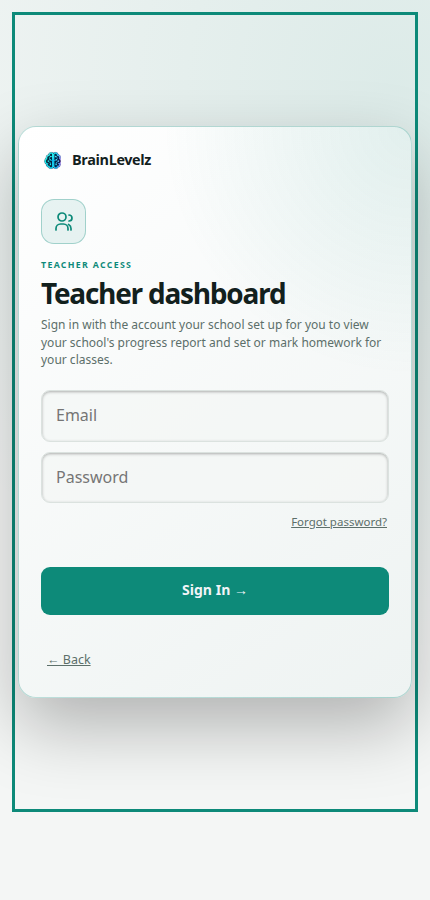
Getting access
There's no self-service sign-up for a teacher account: your school's BrainLevelz administrator creates one for you and gives you an email and temporary password. Sign in through the same "I'm a Teacher" option on the start screen used by parents. It's the same login form, it just recognises your account as a teacher and takes you somewhere different afterwards. Once you're in, tap the 🔑 icon next to Sign out on your report screen to set your own password (you'll need the temporary one your administrator gave you to hand), worth doing straight away rather than staying on the temporary one.
Your school report
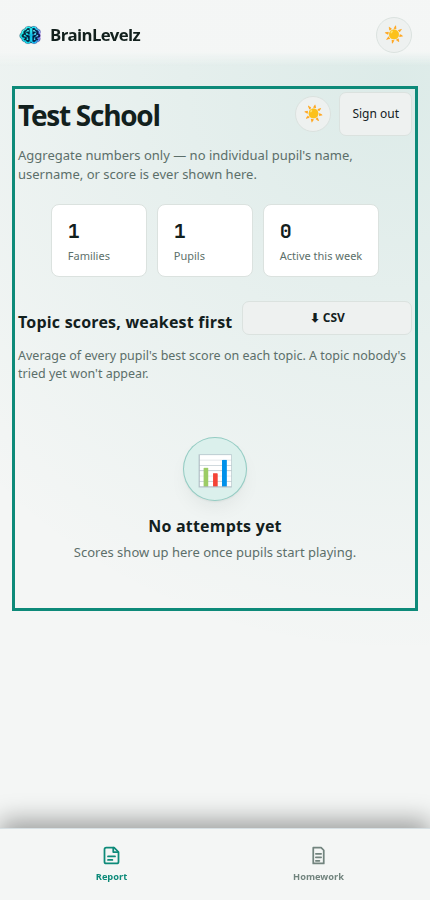
Signing in takes you to your Report tab first: how many families and pupils are active at your school, and average scores per topic, weakest first, so you can see at a glance what needs revisiting in class. A ⬇ CSV button exports the same numbers as a spreadsheet.
Setting up a class
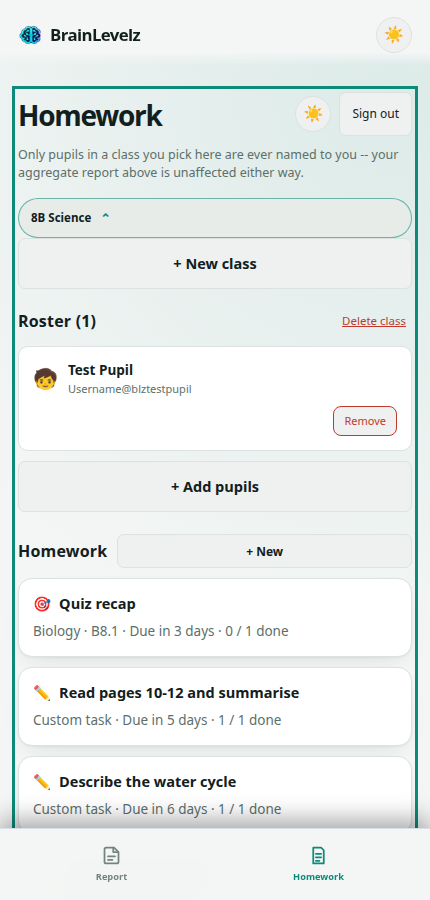
Open the Homework tab and tap + New class. Give it a name: anything that makes sense to you (a subject, a set, a form group).
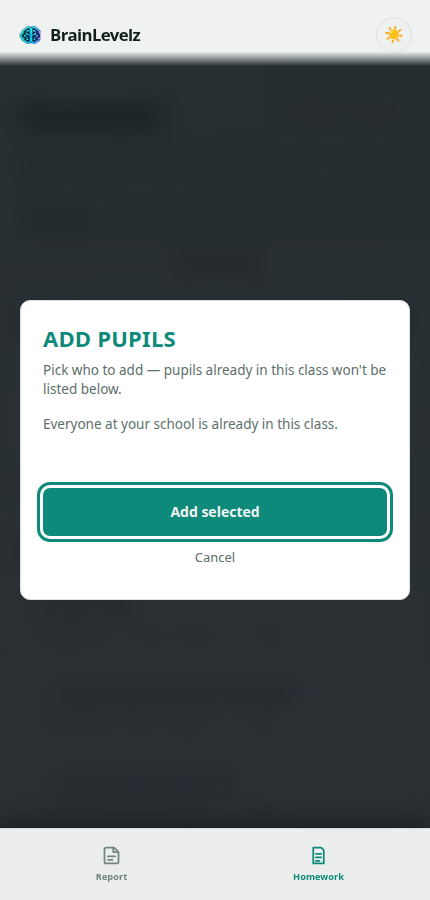
Tap + Add pupils to pick who's in it, from everyone currently at your school. Pupils already in the class won't be listed again.
You can have several classes, and a pupil can be in more than one. Switch between them with the pills at the top of the Homework tab.
Setting homework
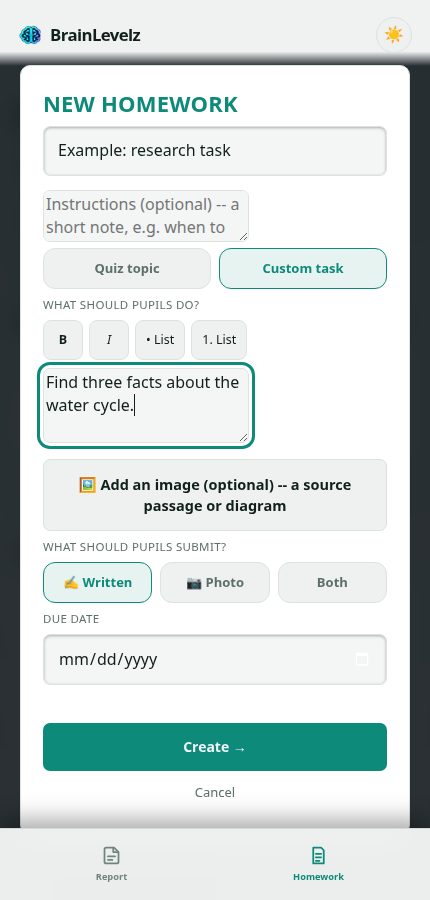
Tap + New from a class's Homework list. There are two kinds:
- Quiz topic: pick one of the existing revision topics. Pupils play it exactly like any other quiz, and their score comes back to you automatically once they finish. If that topic covers more than one term, a Term dropdown appears so you can target just one term instead of the whole topic.
- Custom task: write your own instructions and task text (a reading passage, a question, a source excerpt, bold/lists supported), optionally attach an image, and choose what pupils submit: written answer, a photo of their work, or both.
Either way, set a due date and tap Create. Every pupil in the class gets it immediately.
Marking homework
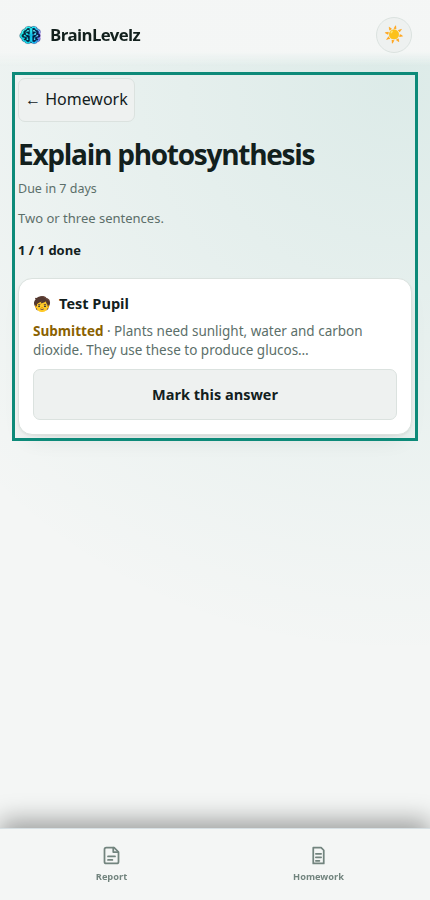
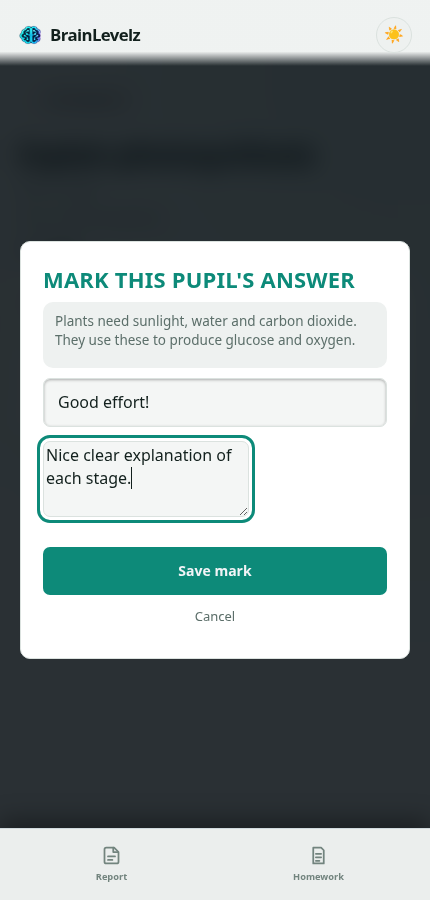
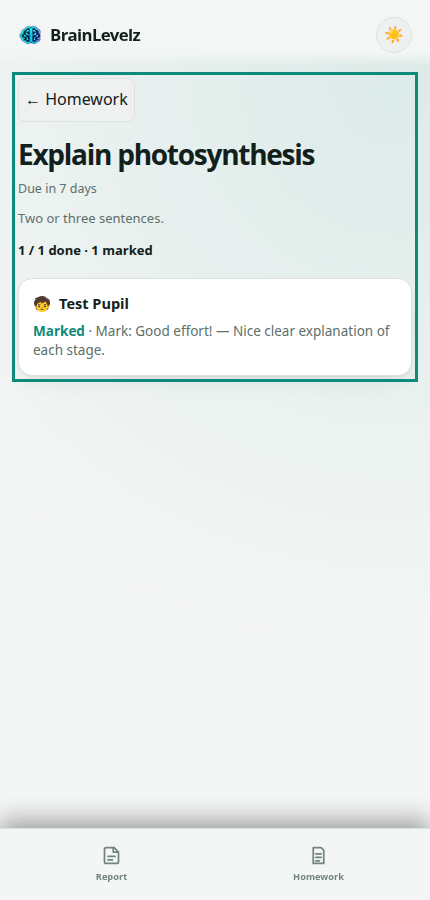
Tap into any homework from the class's Homework list to see every pupil's status (not started, submitted, or marked) and their answer once they've submitted a custom task. Tap Mark this answer to give a mark (e.g. "Well done!", a grade, a score, whatever wording your school uses) and optional written feedback. Both show up immediately on the pupil's own Homework screen, and on their parent's read-only view.
Quiz-topic homework doesn't need marking by hand. The score comes back automatically when the pupil finishes it.
Deleting a class
From the class's Homework tab, Delete class removes the class, its roster, and every homework and submission set for it. This can't be undone. Pupils' own quiz progress and XP elsewhere in BrainLevelz are completely unaffected either way.
Privacy
See the privacy notice for the full picture of what's collected and why. In short: your school-wide report stays aggregate-only, and homework is the one place you see named pupils, only the ones you've added to one of your own classes, and only for the work they've submitted to you.