👪 Parent's Guide
Signing up
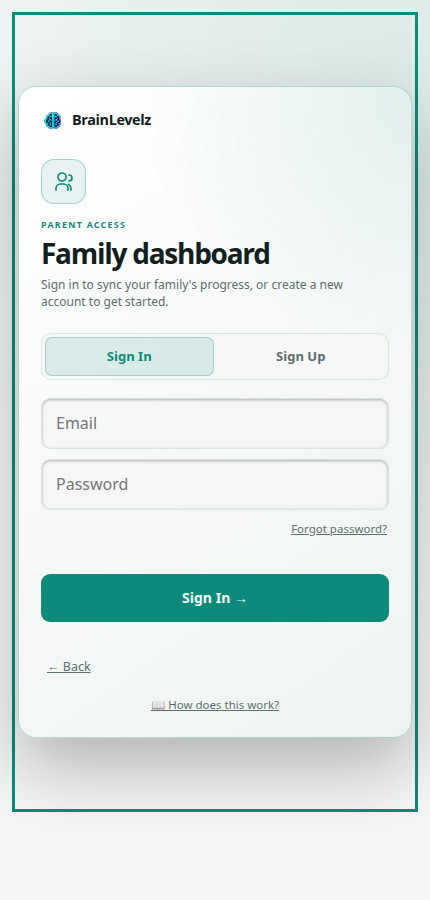
Get a school code from your child's school. Signing up needs one: BrainLevelz is set up per-school, so there's no public "create an account" without it.
Tap "👪 I'm a Parent" on the start screen, then Sign Up, and enter your email, a password, and the school code.
Your password needs to be at least 10 characters, with a mix of upper and lowercase letters and a digit. The sign-up form tells you if it doesn't qualify.
You're signed in immediately, no confirmation email to click. Your account is linked to the school straight away.
Just want to change it, not recover it? No need for an email round-trip. Change password is right there in Settings, further down your Dashboard, once you're signed in. You'll need your current password to hand for that one, as a check against someone else using an unlocked device.
Adding your children
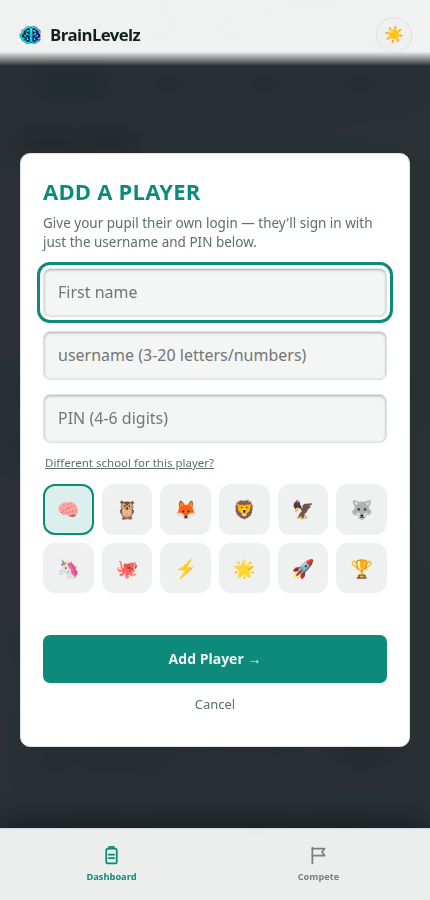
From your Dashboard, open 👪 Manage Children and tap + Add child. You'll pick:
- A username for them (this is what they type in, not their real name if you'd rather keep it separate)
- A short numeric PIN: this is what they use to sign in, not their own password
- Their display name and an avatar
They then sign in from the start screen's "🧒 I'm a Pupil" option with that username and PIN, a completely separate login from yours, with its own screens. They can't reach your Dashboard, the reward ladder editor, or account settings from their login, by design.
Forgotten their PIN? You can change it any time from Manage Children → Change PIN next to their name. They can't reset it themselves.
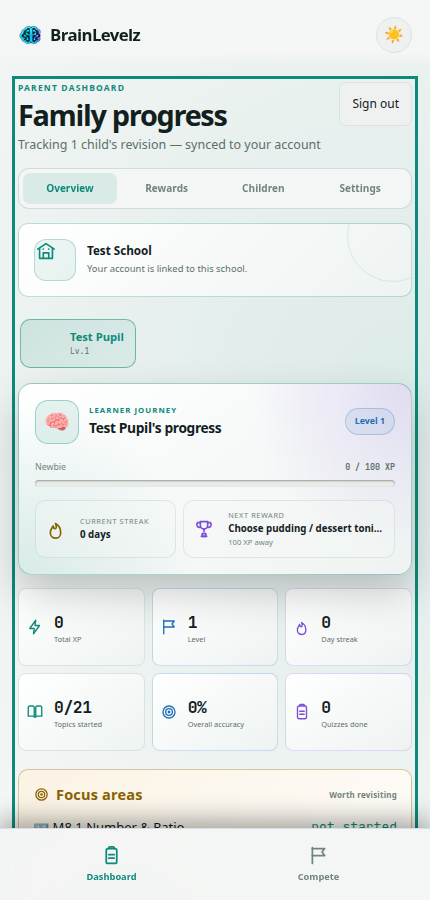
Your Dashboard
Signing in as a parent takes you straight to the Dashboard, showing every child's XP, streak, per-topic gradebook, badges earned, and which prizes they've unlocked (with a toggle to mark one as physically given). This updates live if your child is playing on another device at the same time.
Rewards: Weekly, Monthly, Termly and Grand Prize
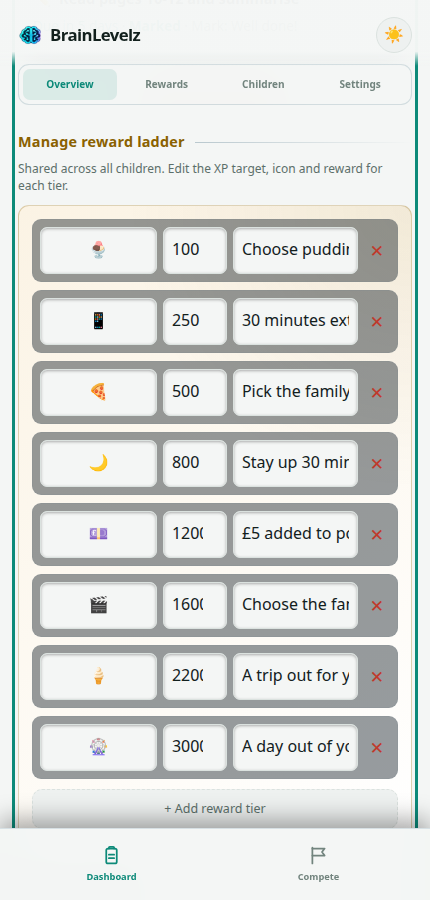
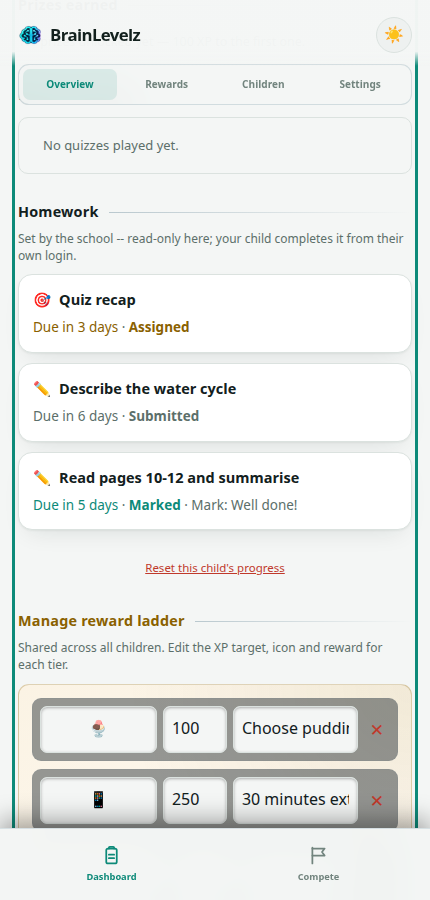
Open 🎁 Manage Reward Ladder on your Dashboard (under the "Rewards" jump link) to set up real-world prizes your child unlocks as they earn XP. Rewards now come in four layers, each on its own schedule, so there's always a fresh, reachable goal instead of one long list that eventually runs out:
- Weekly: resets every Monday. A handful of small, quick prizes (dessert choice, extra screen time).
- Monthly: resets on the 1st. A few bigger prizes (pocket money, choosing movie night).
- Termly: resets at the start of each school term (Autumn/Spring/Summer). The big one: a proper day out.
- Grand Prize: entirely optional. A single big, memorable reward for hitting the weekly target in several terms in a row, rewarding steady effort over time, not a bigger number.
The first time you open your Dashboard, sensible default tiers are created for you automatically (you don't need to set anything up to get started). Add, rename, re-price, or remove any tier freely. Changes apply the next time XP is checked. If your family already had the old reward ladder before this update, it hasn't gone anywhere: it's kept as a read-only Legacy rewards section at the bottom, still fully valid and redeemable, just no longer where new tiers get added.
- Too low (under ~50 XP/week): unlocks after one or two correct answers, most sign-ins. It won't feel like an achievement, and there's little point setting a physical reward against it.
- A reasonable starting point (the defaults: 75/150/300 weekly, 300/600/1200 monthly, 2000/4000 termly): needs a genuine practice session or two spread across the week to reach the first tier, and real variety across several topics to reach the top one.
- Too high: needs several full, perfect topic plays in a single week. Fine for an older or very engaged child early on, but as your child masters more topics, replaying them stops paying full XP, so the realistic weekly ceiling actually shrinks over time. A target that felt fair in week one can quietly become unreachable a few months in.
Worth revisiting occasionally, especially once most topics are mastered. If a target stops getting hit at all, that's usually the target's fault, not your child's.
📋 Your child's homework
If your child's school sets homework through BrainLevelz, it appears in a read-only Homework section on your Dashboard: what's been set, what's due when, whether it's been started, submitted, or marked, and your child's mark and feedback once their teacher's gone through it. A quiz-topic homework shows "Term N" next to the subject if the teacher targeted a specific term rather than the whole topic. You can see it, but only your child can actually answer it, from their own login.
🏁 Compete mode
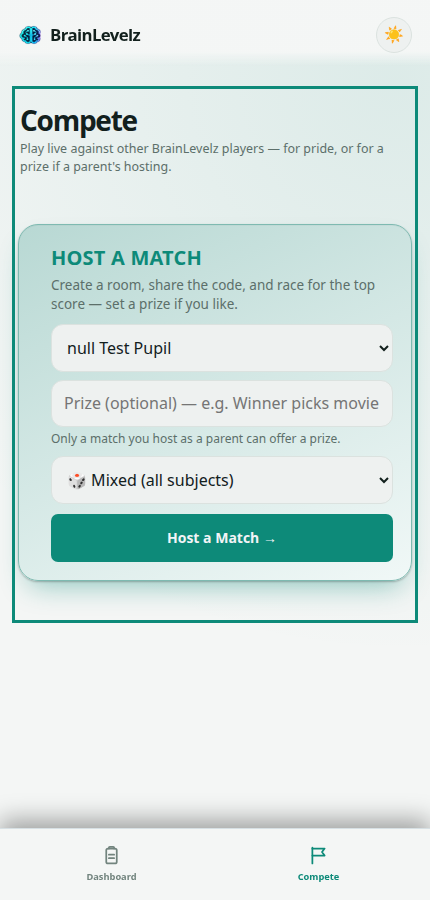
From the Compete tab, pick one of your children and tap Host a Match →, you can optionally set a prize and restrict it to one subject.
Share the 6-character code with other families. They join from their own Compete tab's Join a Match box.
Only you can start the match once everyone's in the lobby. Your child then plays it, with everyone's score updating live for every family watching.
Compete scores are separate from real XP: they never touch your child's actual progress, badges, or reward ladder.
Joining or switching schools
If your account isn't yet linked to a school (or you need to link to a different one), your Dashboard shows a "Join a school" box. Enter a join code there at any time, not just at sign-up.
🔔 Homework reminders
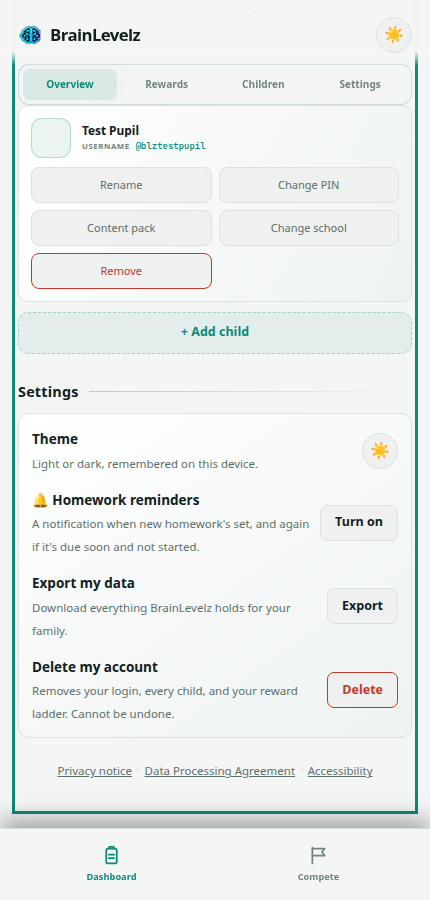
In Settings, right below Theme, there's a Homework reminders toggle. Turn it on and your device will notify you when new homework's set for your child, and again if something's due soon and hasn't been started, handy if your child doesn't check the app every day themselves. This is a separate, independent toggle from your child's own: you can each turn it on or off on your own device without affecting the other.
Exporting your data
Your Dashboard has an Export my data option, next to Delete my account. It downloads a single file (JSON, readable in any text editor) containing your own profile, every child's profile and progress, your reward ladder, and your family's Compete history. Nothing beyond what you can already see in your own Dashboard is included, and nothing from any other family ever is.
Deleting your account
Your Dashboard has a Delete my account option, at the bottom. This immediately and permanently removes your own login, every child's login under your account, your reward ladder, and your Compete history. There is no recovery, and no confirmation email step. Worth exporting your data first if you want to keep a copy. See the privacy notice for exactly what's stored and why, including what a teacher can see if your child's school sets homework.